




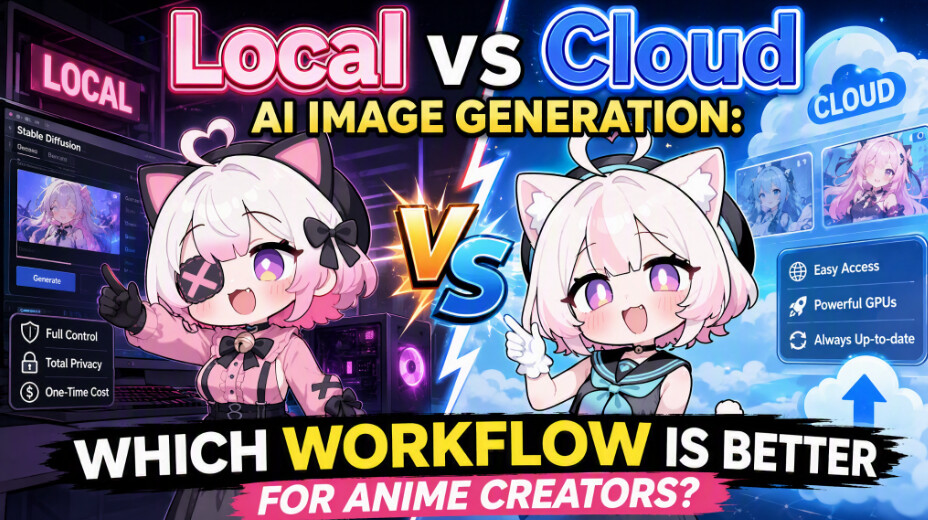
When creating AI images, you have two workflow options. You can install the models on your own computer and let your GPU handle the work, or use a cloud platform like PixAI where the processing happens on remote hardware.
If you want to create AI anime artwork, that choice affects how much control you have over the generation process, how you manage LoRAs and artwork, and how much hardware you need to keep everything running.
So which approach makes more sense for anime creators?
This guide looks at the differences in setup, model access, customization, generation volume, asset management, and privacy. It then puts both approaches through the same character creation workflow.
What is local AI image generation?
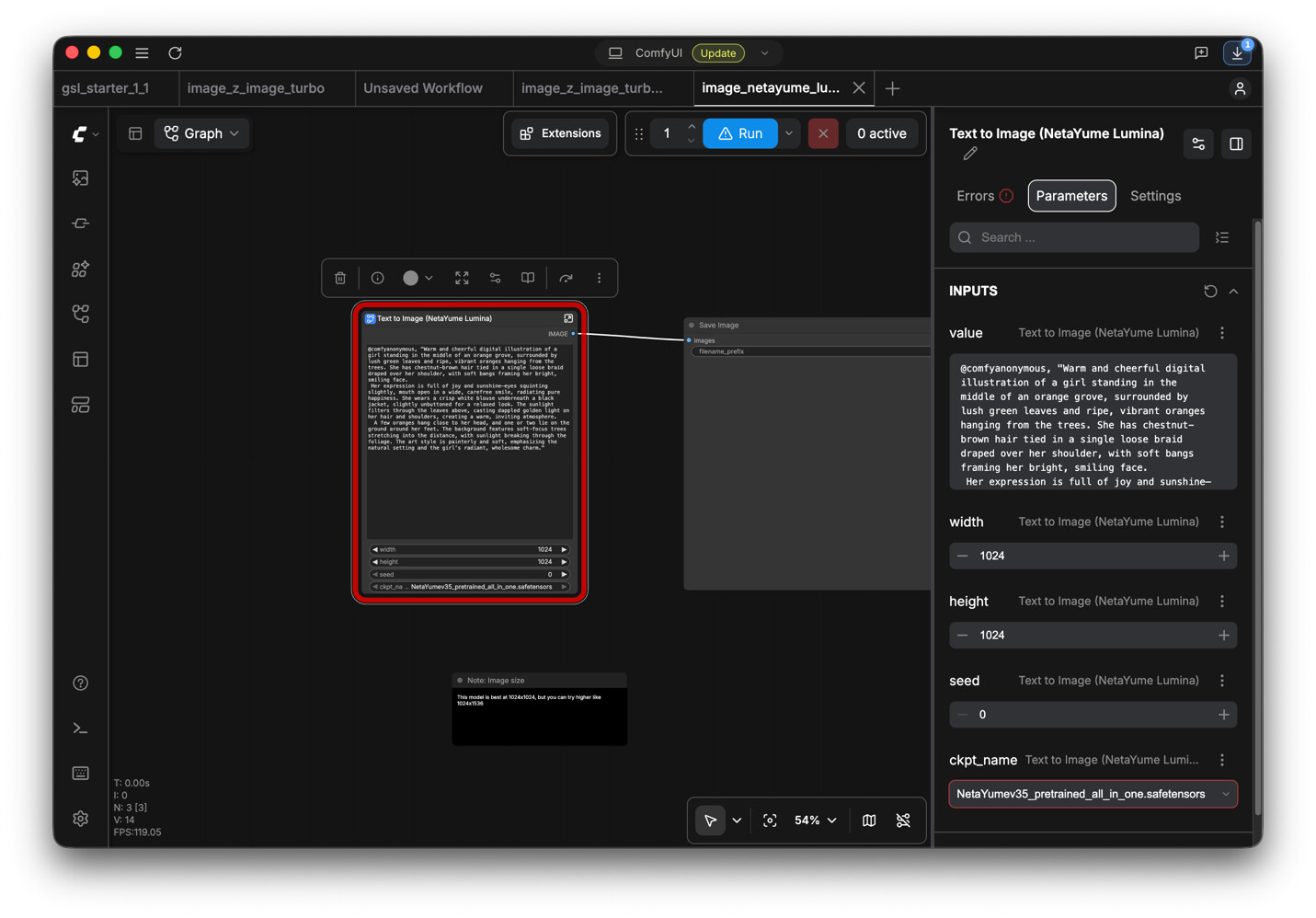
Local AI image generation means running the image generation process on your own computer. You provide the hardware and software, and the AI runs within that local environment.
How local AI generation works
With local generation, the model files are stored on your computer and your own hardware handles the image generation. When you enter a prompt, the software loads the required model into memory and your GPU performs the calculations needed to turn that prompt into an image.
You can work through interfaces such as Stable Diffusion WebUI Forge or ComfyUI, with the latter giving you a visual node-based workflow. The model, LoRAs, VAEs, ControlNets, and other components can all be stored locally and used as part of the generation process. That means the workflow can keep running without sending the generation itself to a remote server.
What you control locally
Running the AI on your own computer gives you direct control over the parts of the generation process that a cloud service normally manages for you. You can choose which models and LoRAs to install, how they are stored, and which settings are used for each generation.
You can also control things such as sampling steps, noise schedulers, memory allocation, and the way different components are connected in the workflow. Tools like Comfy Desktop give you even more control over how those components interact, while WebUI Forge keeps many of the same settings available through a more traditional interface.
The result is a workflow in which the models, files, settings, and processing all remain under your control.
What you need to get started
Because all the processing is being done on your computer, a local setup needs suitable hardware to handle the models and generation process.
A dedicated GPU with around 8GB or more of VRAM is a practical starting point, but more demanding models and workflows will often require 16GB or more.
You also need enough fast storage for the models, LoRAs, and generated images. Individual model files can take up several GB each, so a larger collection can quickly use hundreds of gigabytes.
On the software side, you need a local interface such as Stable Diffusion WebUI Forge or Comfy Desktop, along with the required drivers, dependencies, and model files.
What is cloud AI image generation?
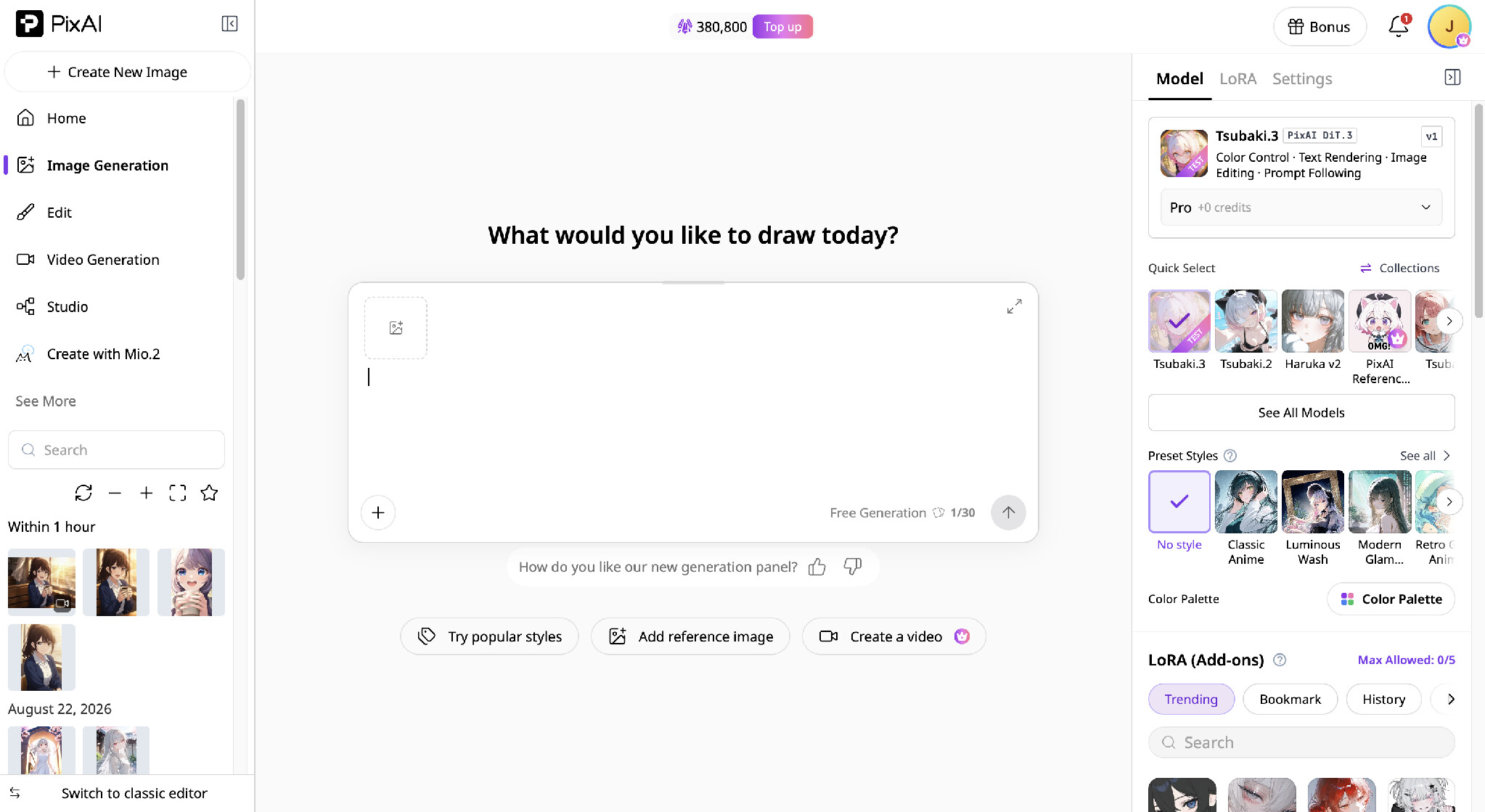
Cloud AI image generation runs the models and rendering process on remote servers instead of your own computer. You access the service through a browser or app, provide your prompt and other inputs, and the cloud handles the processing before returning the generated image.
This means the hardware doing the work is managed elsewhere. You can use the same workflow from a laptop, tablet, or phone without installing large model files or maintaining a local GPU setup.
How cloud AI generation works
When using cloud generation, you choose a model, enter your prompt, add any LoRAs or reference images you need, and send the generation task to the service. The remote hardware handles the diffusion process and returns the finished images to you.
In PixAI, the generation panel brings the main controls into one place. You can choose a model and LoRAs, set things such as the aspect ratio and resolution, and adjust other parameters supported by that model. Different models offer different controls, so the amount of fine-tuning available depends partly on what you use.
What you control in the cloud
Most cloud platforms like PixAI are designed for simplicity, but that does not mean giving up control over the creative process. You can still choose the model, apply LoRAs, write and refine prompts, adjust generation settings, and use tools such as ControlNet or regional rendering where they are available.
The main difference is what happens underneath those controls. You decide what you want the AI to create, while the cloud service manages the GPU, model files, software environment, and processing. You get control over the creative workflow without having to manage the hardware that runs it.
Local vs cloud: What changes for anime creators?
The difference becomes more noticeable when you look at the needs of an actual anime project rather than the technology behind each setup. A creator working on one image has different priorities from someone developing an OC across dozens of variations, edits, and scenes.
Let’s compare the two workflows based on everyday decisions.
Getting started
The difference is most obvious before the first image is generated.
A local workflow requires the right hardware, software, dependencies, and model files to be ready first. With a cloud service, most of that preparation happens on the provider’s side, so you can start directly from a browser or app.
For an anime creator, the latter makes experimentation much quicker. You can try an idea without first deciding whether your computer has enough VRAM or setting up another model. With local AI, that preparation is basically part of the workflow because you need to get everything ready first.
The freedom to use different models and LoRAs
Local generation gives you broad freedom over which models and LoRAs you use. You can download checkpoints or community-trained LoRAs from sources such as Civitai, keep them on your own storage, and switch between them whenever you want. You are also free to use niche models that may not be available through a particular cloud service.
Cloud platforms take a more managed approach. PixAI gives you access to a large collection of anime models and community LoRAs without requiring you to download and store the files yourself. You can try different styles and character-focused LoRAs without filling your local drive with multi-gigabyte model files. Switching between them only takes two clicks instead of waiting for a 5 GB file to download.
The level of control and customization
Local AI gives you more room to customize the generation process. Tools such as Stable Diffusion WebUI Forge and Comfy Desktop let you adjust detailed parameters, build multi-stage workflows, add ControlNet or other components, and change how different parts of the process work together.
Cloud platforms such as PixAI focus more on the controls most creators need without exposing the entire underlying setup. You can still adjust generation parameters, LoRA weights, ControlNet, and other creative settings, but the software environment and hardware remain managed by the platform.
For power users, local gives you more freedom to build exactly the workflow you want. For creators who want control without having to manage the technical infrastructure, cloud platforms offer a more streamlined approach.
Speed and generation volume when working on a big project
Local generation is tied to the GPU on your computer, so generation speed depends on the hardware, model, resolution, and settings you use. A powerful GPU can handle large batches and repeated generations well, while a smaller setup may take longer as the project grows.
Cloud generation takes most of the hardware considerations out of the picture. Processing is handled by powerful remote GPUs, which makes processing faster when creating many poses, scenes, or character variations. Platforms like PixAI let you adjust the processing speed, but faster processing also means higher credit consumption.
How you store and manage your assets
Local workflows give you direct control over where everything is stored. Models, LoRAs, reference images, and generated artwork can all stay on your own SSD, with folders and external drives organized however you prefer. This works well when you want complete control over a large personal library, although managing that library often becomes a significant responsibility as it grows.
Cloud workflows move much of that storage management to the platform. With PixAI, your generated images and other creations remain available through your account, so you can return to previous work without keeping every asset on the device you are currently using. This also makes it easier to move between a desktop, laptop, tablet, or phone while continuing the same project.
Practical workflow test: Creating an anime character locally and in the cloud
It’s easier to judge the differences between local vs cloud AI anime generation when you use both for the same creative goal. I put PixAI and ComfyUI Desktop through a workflow that involved generating an image, editing it, then turning it into a video.
Setting up the workflow
To use local AI, the setup starts on the computer itself. You need to install the application, the models you want, and prepare any LoRAs or other components the workflow will use. Those files also take up local storage, and the amount of preparation depends on the workflow you want to run.
PixAI makes it easy to get started by removing most of that setup from the creator’s side. After opening the cloud platform, you can choose a model and LoRA from the available resources without downloading the model files or configuring the local environment. The hardware doing the generation is also handled by PixAI.
Creating and revising the character
In ComfyUI Desktop, the generation was built through the local workflow, with the model, prompt, LoRA, and generation settings connected and adjusted on the canvas. PixAI offered the same basic creative process through its cloud interface, with the model and LoRA selected from the available options before generating the artwork.
Once the initial character was ready, I moved into editing. Both platforms allowed the changes to be added to the existing workflow, but the interconnection of PixAI made it easier to work with existing artwork without starting over.
Extending the image into a video
After editing the character artwork, the final step was turning the image into a video. In ComfyUI Desktop, this requires adding the appropriate video workflow and connecting the edited image to it. That gives you control over how the image moves through the video pipeline, but it also means setting up the models and nodes needed for the process.
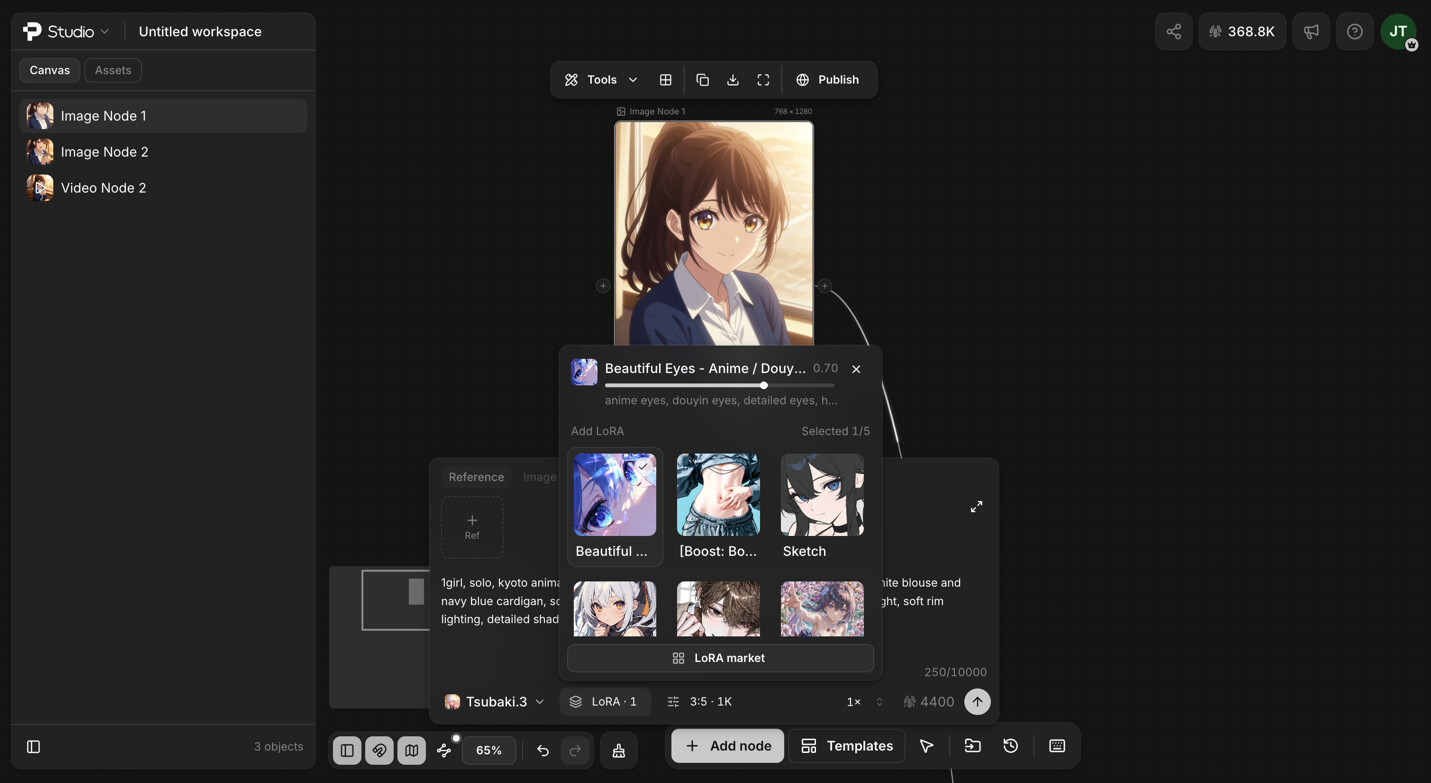
PixAI Studio keeps the transition closer to the original creation workflow. All you need to do is add a video node and a prompt to convert an image into a video. You’ll still have control over aspects like camera movement.
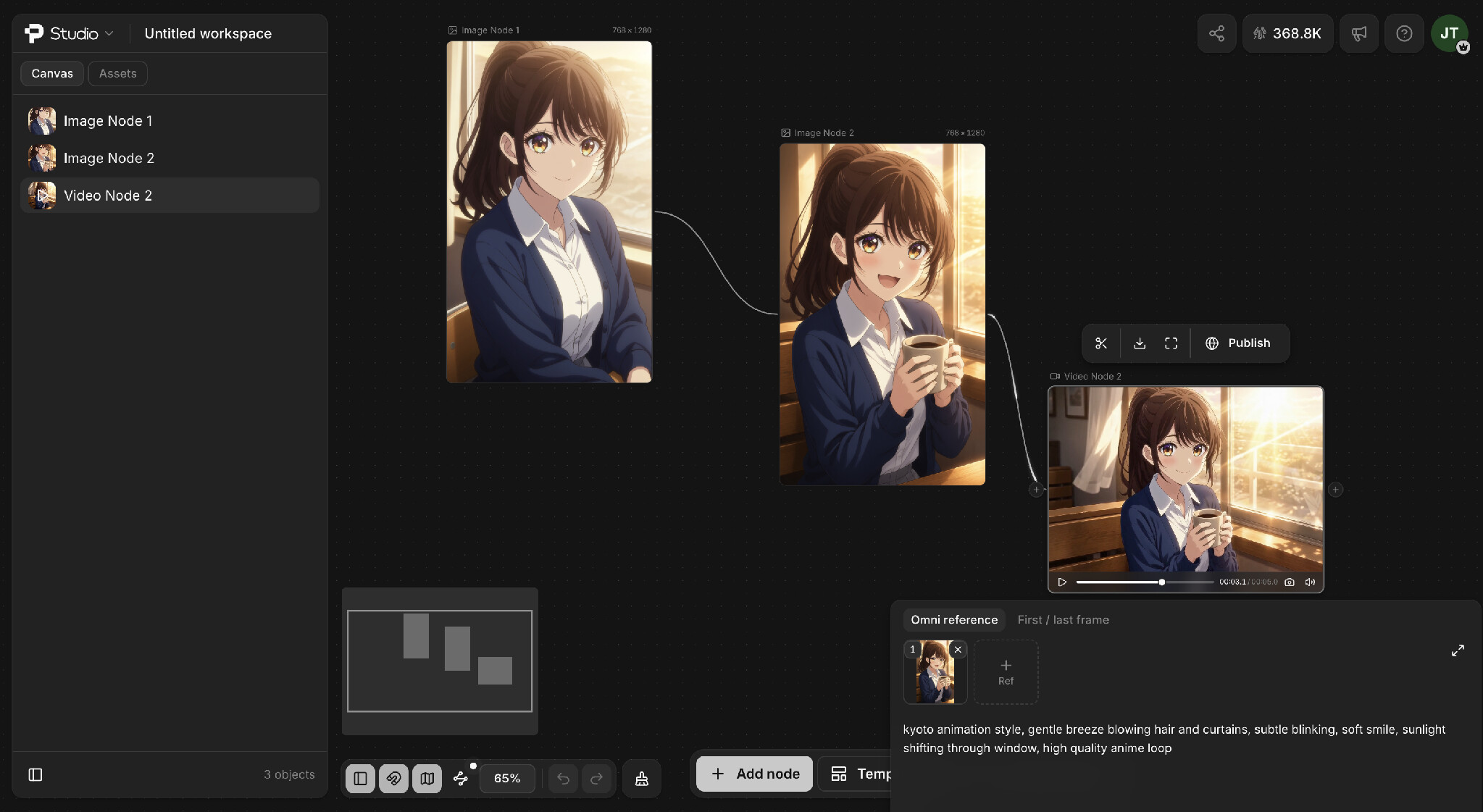
What the workflow felt like in practice
ComfyUI Desktop gave me more control over each stage, but also required more setup and management along the way. PixAI felt more direct, especially when moving from the initial artwork through editing and into video.
Local vs cloud AI image generation: Key differences
The hands-on local vs online AI art generation test brings the main differences down to setup, control vs convenience, and how much of the workflow you want to manage yourself.
| Feature | Local AI | Cloud AI |
| Initial setup | Install software, models, and required workflow components | Open the platform and start creating |
| Hardware | Requires suitable local hardware | Uses cloud hardware |
| Models and LoRAs | Download and manage files locally | Select available models and LoRAs online |
| Control | High level of workflow and parameter control | Streamlined creative controls |
| Generation volume | Limited by local hardware | Cloud processing supports larger batches and variations |
| Storage | Models and artwork use local storage | Creations are stored within the cloud platform |
| Editing | Build editing steps into the local workflow | Edit within the connected creative environment |
| Image-to-video | Requires setting up the required local workflow | Available through the cloud workflow |
| Best suited for | Creators who want deep technical control | Creators who want a more connected and convenient workflow |
Which workflow should you choose?
The better choice depends on how much technical control you want and how much of the setup you want to handle yourself.
Cloud AI may make more sense for
Cloud AI is a good fit for creators who want to start generating quickly without installing software, managing model files, or maintaining a powerful GPU. It also suits anime creators who want easy access to models and LoRAs, work across different devices, and want image editing and video generation in the same workflow.
Local AI may make more sense for
Local AI is better suited to creators who want deeper control over models, settings, workflows, and the hardware running them. It can be particularly useful for power users who enjoy experimenting with different tools, custom workflows, and specialized generation pipelines, or who want to keep their projects and processing entirely on their own computer.
The right workflow depends on what you want to create
Local and cloud AI image generation solve the same basic problem in different ways. Local workflows give you more control over the models, files, hardware, and generation process, while cloud platforms such as PixAI handle the technical infrastructure so you can focus more directly on the creative work.
When creating AI anime artwork, the better choice depends on the kind of projects you work on and how much of the workflow you want to manage yourself. If you want to experiment with custom models and highly specific workflows, local AI gives you plenty of room to do that. If you want a more connected way to create, edit, and turn anime artwork into video without managing the underlying hardware, PixAI offers a more streamlined approach.