




A short clip can create a surprisingly large editing problem. A speaker may finish a sentence just before the planned cut, a product may leave the frame too quickly, or a transition may need one more second to match the music. Rebuilding the shot is often expensive, while repeating the last frame can look obvious.
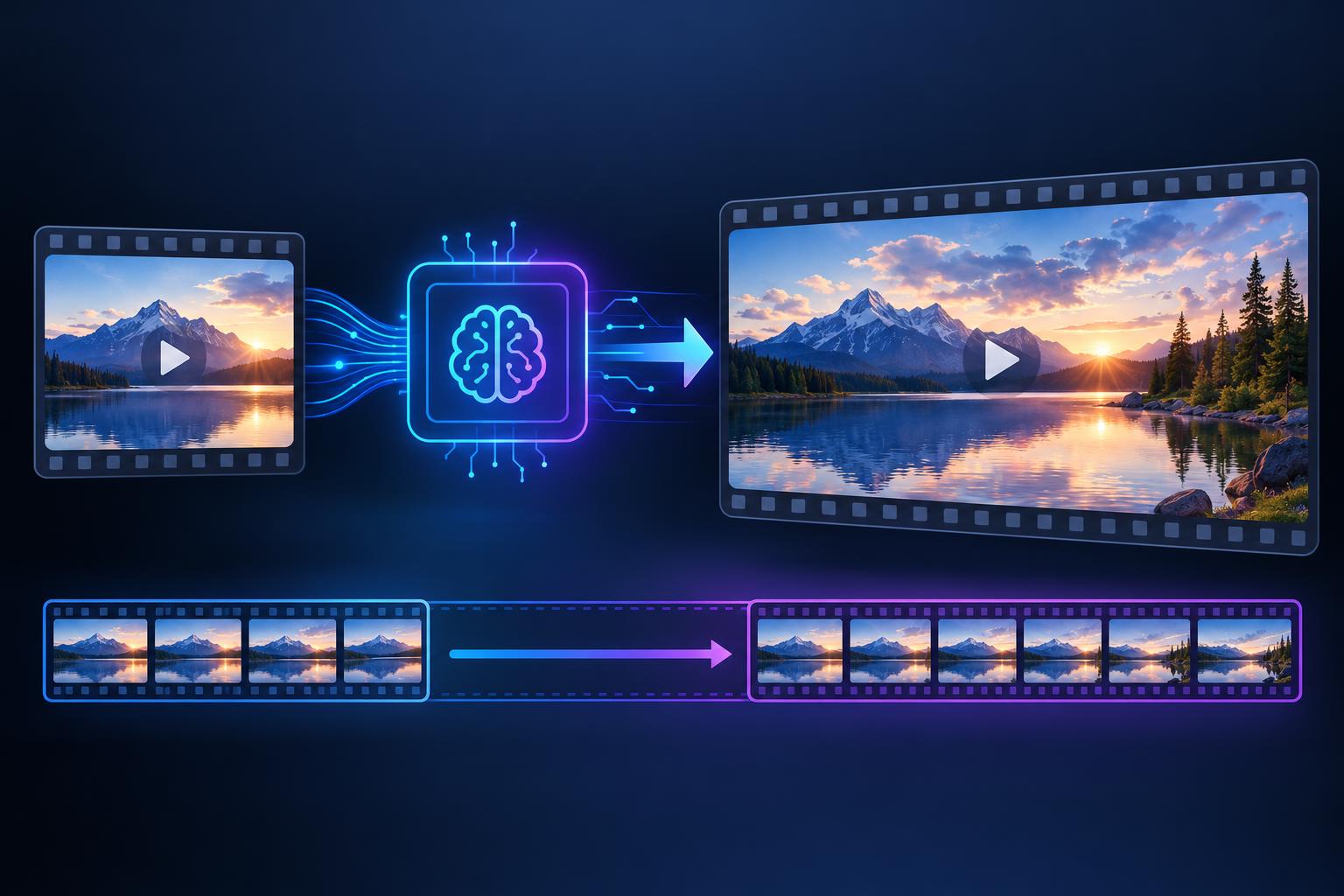
AI video extenders are designed for these small gaps. They study the movement and visual structure of a clip, then create extra frames that continue the scene. The technology is useful for social posts, product demonstrations, travel edits, tutorials, and personal projects. To use an ai video extender effectively, creators should treat it as an editing aid with clear limits rather than as a replacement for every new shot.
The Basic Idea
A video extender starts with an existing sequence and predicts what could happen next or what might have happened just before it. It uses clues from the last few frames, including the position of the subject, camera movement, lighting, and background patterns.
If a person is walking toward a table, the tool may generate the next step. If a camera is slowly moving across a room, it may continue showing the room. If a product is held still, the system may create a subtle pause or movement.
The generated frames are an interpretation. They are not guaranteed to show what actually occurred. This matters when the video presents factual events, product details, or people whose appearance must remain accurate.
Start With a Specific Editing Problem
Before opening an AI tool, identify why the clip needs to be longer. Common reasons include:
- Matching a voiceover
- Reaching the end of a music phrase
- Creating space for a title
- Letting viewers see a product
- Smoothing a transition
- Holding a reaction before a cut
A clear reason helps you choose the right length. If you only need half a second, generating four seconds may create unnecessary problems. The goal is to solve a timing issue, not to add random footage.
Select the Best Source
The source clip determines how much the tool can infer. Choose a section with clear movement, steady exposure, and a visible subject.
A clip that ends during a slow camera pan is often easier to extend than one that stops during a fast turn. A person standing against a plain wall is easier to continue than a crowded street with several moving bodies.
Check the last few seconds rather than only the final frame. The tool needs context to understand the direction of movement and the relationship between objects.
Use the Ending as a Visual Clue
The final moment of a clip contains information about what might come next. A hand moving toward a door suggests one type of continuation. A camera pointing at an empty sky suggests another.
Avoid trimming away all movement before the final frame. If the clip ends with a sudden freeze, the system has less evidence to work from. Leave enough natural motion for the tool to interpret.
If the original ending is unusable, consider extending an earlier section and cutting back to the original ending later. This can create a cleaner result than asking the system to continue a damaged frame.
Choose a Suitable Extension Length
The best extension is usually the shortest one that serves the edit. A few extra frames can make a cut feel smoother. A longer generated section may be useful for a slow landscape or product turn, but it creates more opportunities for drift.
Test several lengths if the tool allows it. Compare half a second, one second, and two seconds at the final timeline speed. The difference may be more noticeable when the full edit is playing with music and captions.
Shorter is not always better, but it is easier to control. Begin with a small amount and increase only when the story needs more space.
Continue Motion or Hold the Frame
Some editors need continued action. Others simply need a longer pause. Decide which one fits the scene.
A continued action might show:
- A hand placing an item
- A person finishing a step
- A camera completing a pan
- A vehicle moving through a frame
- Waves continuing across a shore
A held moment might show:
- A product centered for a title
- A person reacting before a cut
- A landscape under a location label
- A finished dish before a recipe step
A held moment can be easier to keep stable, but it should not look like a repeated still image. Subtle camera movement or natural background activity can make the pause feel more alive.
Check the Main Subject
After generating an extension, review the subject at normal speed and frame by frame. Look for changes in size, shape, position, or color.
For people, inspect faces, hair, hands, and clothing. For products, inspect edges, labels, logos, and buttons. For vehicles or instruments, check wheels, strings, and other repeated details.
If the main subject changes noticeably, shorten the extension or use a cutaway. The audience is more likely to forgive a brief transition than an object that seems to transform by itself.
Watch the Background
The background can reveal errors even when the subject looks acceptable. Straight lines may bend, windows may move, and repeated textures can become uneven.
Simple areas such as sky, water, walls, and blurred foliage are often easier to extend. Complex shelves, crowds, signs, and architecture require more attention.
If a generated background becomes distracting, consider placing text, a graphic, or a soft overlay over the weakest area. This can be useful in social videos, but do not use graphics to hide a major factual error.
Match Lighting and Color
The extension should appear to belong to the original footage. Check whether brightness, contrast, white balance, and shadow direction remain stable.
A sudden change in color can make the new section look like a separate shot. Use a regular editor to make a small color adjustment if necessary. It is easier to correct a mild difference than to fix a major lighting shift.
For a sequence of several extended clips, apply a shared finishing grade. This helps the generated sections feel like part of the same project.
Audio and Timing
The visual extension may not include matching audio. If the original voice ends before the new frames, the extra time can feel empty. If music continues, the visual should align with the beat.
Possible solutions include:
- Extending room tone
- Adding a short sound effect
- Continuing the music
- Using a gentle fade
- Placing a title card
- Cutting to a related detail
Make the audio decision before final export. A visually smooth clip can still feel wrong if the sound stops suddenly.
Use Extenders for Product Content
Product creators often need a few extra seconds to show packaging, a close-up, or a final result. AI extension can provide that time without another take.
Accuracy remains essential. A generated product should not change shape, color, or label. Avoid long extensions when the object contains fine text or reflective surfaces.
One practical approach is to use the extension only for the background or camera movement and keep the original product layer visible. This can preserve the most important commercial details.
Use Extenders for Social Content
Short-form platforms often use templates with fixed timing. A clip that is slightly too short may leave an awkward blank space or force a rushed transition.
Extending a simple action can help the video fit the template. However, do not extend every clip automatically. A fast, clear sequence may lose energy if each shot receives additional frames.
Check the entire vertical composition. New movement can push the subject toward a caption area or platform interface button.
Use Extenders for Tutorials
Tutorials sometimes need a longer pause so viewers can read an instruction or see a completed step. A short extension can hold the screen before the next section.
For screen recordings, be careful with text and interface elements. Generated lettering may become distorted or unreadable. It is usually safer to add a title card or freeze a clean screenshot instead.
For hands-on demonstrations, extend only simple movements and review the fingers and tools. If the action is precise, a second real take may be more reliable.
Compare Options in Context
A generated clip should be judged inside the full edit. A version that looks good on its own may feel slow when placed between two fast shots.
Play the entire sequence with sound, captions, and transitions. Ask whether the extension improves the story or only increases duration.
If multiple outputs are available, label them clearly and compare the same moment. Look for the version with the most stable subject and the least unnecessary movement.
Combine With Other Editing Techniques
AI extension is rarely the only solution. You can combine it with:
- A short freeze frame
- A zoom-in
- A cutaway
- A speed adjustment
- A crossfade
- A graphic or caption
- A repeated ambient shot
These techniques can hide a small seam and give you more control. The best choice depends on the message and pace of the video.
Keep the original project editable. If a generated section fails during later revisions, you should be able to remove it without rebuilding the timeline.
Export and Review
Export a short test before rendering the final project. Check the file on a phone, since small screens can reveal flicker and edge problems more clearly.
Review:
- Motion continuity
- Subject identity
- Background geometry
- Lighting and color
- Text and logos
- Audio timing
- Resolution and frame rate
If the extension looks softer than the source, avoid using it for a large hero shot. It may still work behind a title, in a quick transition, or as a background layer.
Responsible Use
AI generated frames should not be presented as untouched evidence when they depict events that did not happen. For creative work, explain the technique when the audience may reasonably be confused.
Get permission to edit footage containing other people, clients, or performers. Respect licenses for music, game footage, logos, and stock content.
Keeping a project note that identifies generated sections is a useful habit for commercial teams. It supports review and makes future changes easier.
Common Mistakes
A common mistake is using an extender before deciding the final edit. It is better to identify the timing problem first.
Another mistake is selecting a clip with too much motion. Begin with a steady scene and learn how the tool handles simple movement.
Some creators also forget to shorten an extension after the first test. If the first half-second solves the issue, remove the unnecessary remainder.
Finally, do not skip the final review. Generated frames can look convincing in a thumbnail but reveal errors when the video plays.
A Practical Workflow
Use this process:
- Identify the exact timing gap.
- Choose a clear source with predictable motion.
- Save an untouched copy.
- Select the extension direction.
- Generate the smallest useful amount.
- Inspect the subject, background, and lighting.
- Review audio and transitions.
- Compare the result in the full edit.
- Export a test file.
- Check it on the target device.
- Keep the original and editable project.
This workflow keeps the tool focused and reduces unnecessary generation.
Final Thoughts
AI video extenders work best when they solve a small, specific problem. They can add time for a product shot, smooth a transition, match a music cue, or hold a reaction long enough for viewers to understand it.
The quality depends on the source, the motion, and the amount of footage requested. Clear subjects, simple backgrounds, stable lighting, and short extensions are usually the safest combination.
Use AI as one part of the edit, then finish with normal control over timing, sound, captions, and color. When the generated section supports the story and remains consistent with the original, it can save a reshoot while keeping the video natural.