





When you have a lengthy video, splitting it into small parts is essential so you can merge them later with proper editing and transitions. When a video is split into small parts, you can easily see what clips need to stay and which are irrelevant. YouTubers or Videographers mostly use Video Splitters to bring a touch of professionalism and expertise to video editing. Video Splitters are available as apps, but most people use Video Splitter software on computers.
We have made a list of the top 3 Video Splitters that you can download on computers. All of the splitters mentioned below are excellent and reliable for video editing. Let’s talk about them to see which video splitter will work best for you.
The top 3 best video splitters on computers are:
- Wondershare Filmora
- EaseUS
- Bandicut
Now let’s talk about them in detail, and we will tell you how you can do video splitting using this software.
1- Wondershare Filmora
Usually, the video quality declines after spitting the videos into clips. But when you use this video editing software known as Filmora, you will observe that your videos will be edited in 4k resolution. Wondershare Filmora is the best software that helps you with every kind of video editing. It doesn’t matter if you are a beginner, amateur, or professional. This software’s easy-to-use and user-friendly tools will help you in every step of editing. You can get a free trial of Filmora to get to know more about its features. Otherwise, it’s best to pay for its subscription.
Splitting the Video Using Filmora on Computer
By following the below-mentioned steps, you will be able to do video splitting using Filmora:
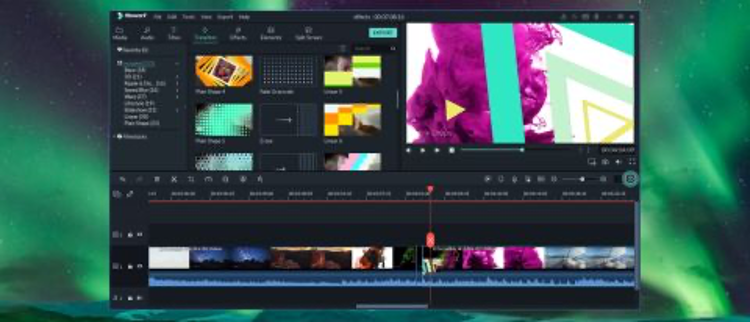
- Open Filmora on your computer.
- Import the video you want to split into small clips by clicking the IMPORT button at the top.
- Another method to import the video is by dragging it toward the Timeline from the media section.
- To split a video into different scenes, you can use the Detection Feature, which automatically breaks a large video into smaller clips.
- To split the video manually, open the video on Timeline and select the full feature mode.
- You will have to drag the vertical line on the part of the video you want to split.
- After choosing the part for splitting, click on the scissors icon at the top, which is the tool for splitting. Now bring the line to where you want the video to end and again click the scissors.
- You can delete the rest of the video if it is of no use to you by clicking the Delete Button.
- After you are done, click Save and then Export the video to a file on your device.
Note: here are detailed steps to split a video into parts with ease.
2- EaseUS
EaseUs is a proper video editing software that has every little feature for video editing. Not only can you split the videos using EaseUS, but you can also merge, rotate, mix, trim and manipulate the videos professionally. You can also add special effects to your videos by EaseUS. You will have to pay for its advanced version for video splitting, as the trial version only offers basic video editing tools.
Splitting the Video Using EaseUS
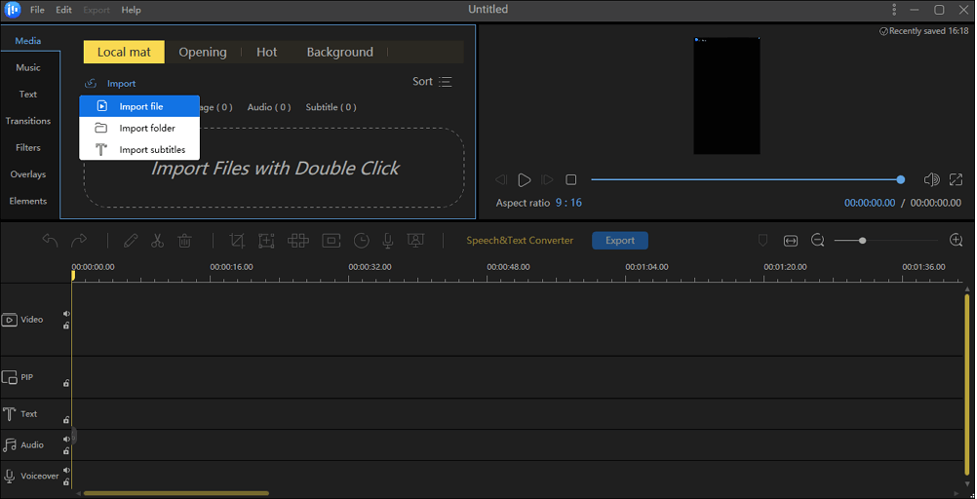
- Import the video you want to split by using the Import button at the top of the EaseUS timeline.
- A vertical line will appear when the video is available on the Timeline.
- Drag the line to where you want to split the video. Once you have positioned it, click on the scissors icon right above the video.
- Now drag the line to where you want to end the video split.
- Again press on the scissors, and a clip will be divided.
- Now save the clip and export it to a file.
3- Bandicut
Bandicut is the most easy-to-use video splitter software programmed for beginners as well as professional video editors. It has a simple interface; besides splitting the video, you can cut, trim and extract mp3 from the video using Bandicut. Bandicut doesn’t have as many features as other video splitters, but it works best if you want to split some video quickly.
Splitting the Video Using Bandicut
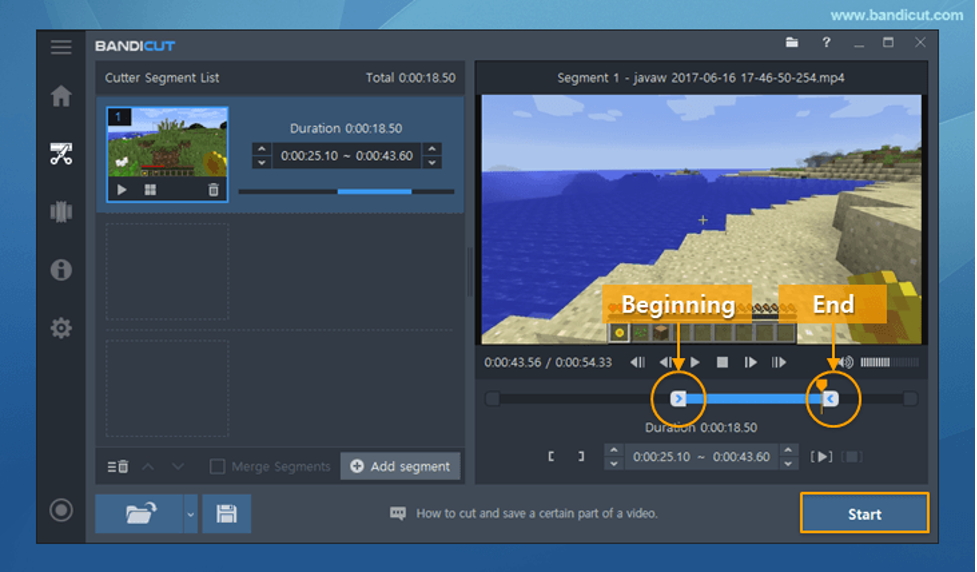
- After downloading Bandicut from its official website, start the software once the installation is complete.
- You will get options to cut, split or join the video. Click on Split.
- By clicking on the media button on the left side of the screen, choose a video for splitting and click Open.
- You can split the video into three methods: Split the video into 2 equal parts, split the video into a 5 minutes segment, and manually split the video.
- Once you have chosen a method and your video is up for splitting, click on high-speed mode, so the video quality doesn’t get ruined while splitting.
- Once the process is done, click on the Open button to watch the small clips.
- Click Save to save the small video clips.
Conclusion:
As you can see, we told you about the top 3 best video splitters which are easy to use. All of them have amazing features and do not deteriorate the quality of the video while splitting them. Now you can use the one which suits you best. Good luck with editing the video!